Bypass the Network section on new Windows 11 PC without providing a network connection
When setting up a new Windows 11 device, you can no longer just choose the option to set up the device offline. Microsoft has made it so you now HAVE to set up the device with a network connection and email etc. To bypass this, in the ‘Network’ section of the Windows OOBE (out of box experience), open up CMD (Shift+F10) and enter the below
OOBE\BYPASSNRO
This should restart the laptop and then give you the option to continue with limited setup.
Start PowerShell session on another computer
Enter -PSSession -ComputerName (Enter computer name)
Press enter
Force a Sync between your On-Prem AD and your Office 365 environment
Open PowerShell and enter the below (case sensitive)
Start-ADSyncSyncCycle -PolicyType d
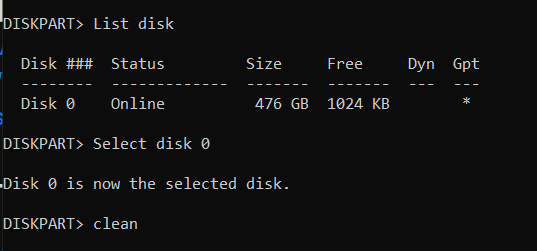
Wipe disk using diskpart
Open CMD and type the following:
Diskpart
List disk
Select Disk (Your desired disk, be very cautious on this
part as you will completely wipe the disk)
Clean
Convert GPT (If needed for Windows installation)
Run a PowerShell script for InTune from CMD Prompt
Shift + F10 for CMD
Type Powershell to enter Powershell
Type dir to enter USB
Type the name of your script .PS1 and then complete instructions. It will
commonly be autopilotscript.ps1
If you get an error, type ‘set-executionpolicy remotesigned’ and re-run
the steps above.
Force download an app from MS Store
(Space) winget install “Name of app”

 IT Helpdesk solutions for Dummies
Leave a comment